Creating a new access from within digital banking

Instructions for setting up a new device from within digital banking

Step-by-step guide to setting up a new access

You are able to set up a new access easily within digital banking. To do this, you need to log into digital banking using your existing device. If you cannot login, please contact your Client Relationship Officer or eBanking Support.

For your security, you can only have EFG Digital Key on ONE device. So if you set up a new device your old access will be automatically revoked.

Step 1
Log into digital banking using your existing device on a desktop, and navigate to "Mobile" in the top navigation. Follow Step 1, under ‘Link new application’ and download EFG Digital Key on your new device by scanning the QR code for the App Store or Google Play. Once downloaded, set up the app.
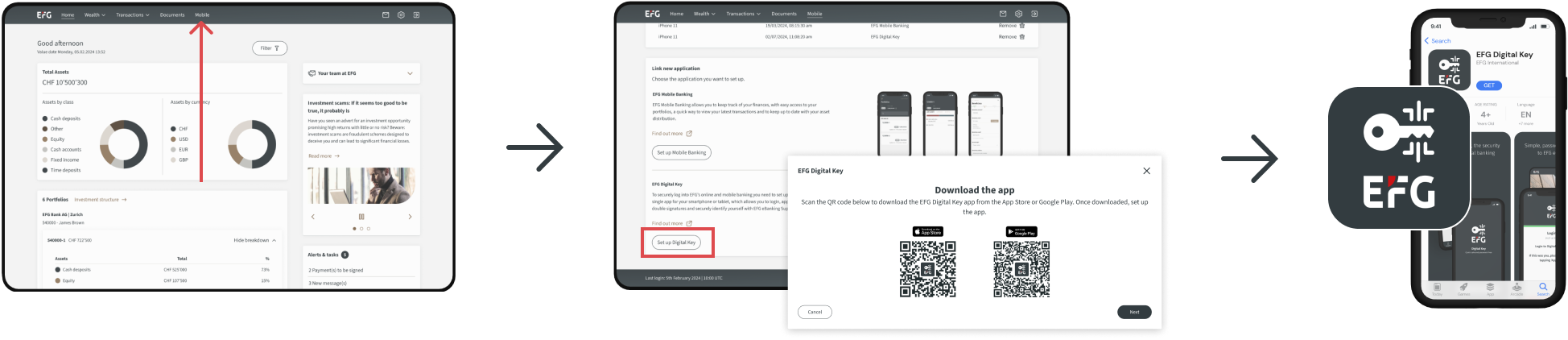
Step 1_NewAccess_V2.png

Step 2
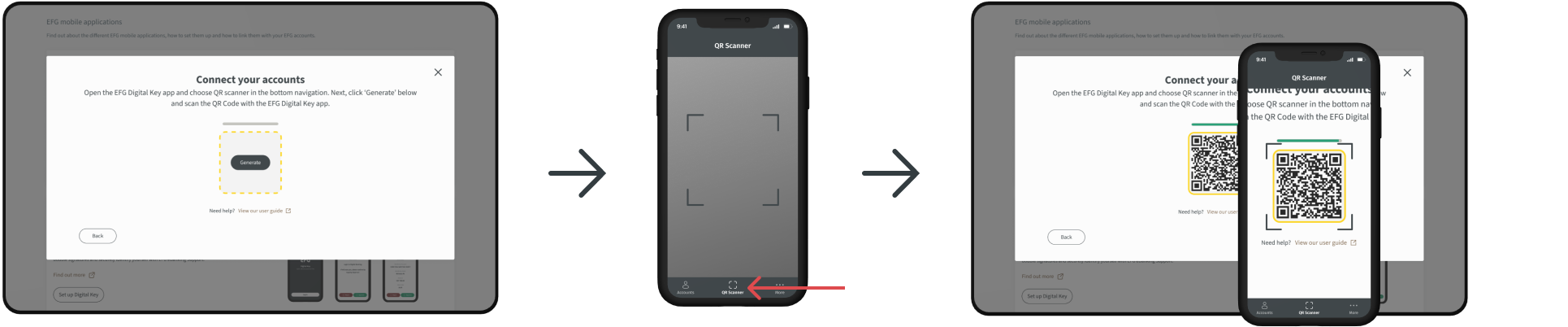
Return to the digital banking webpage to complete Step 2. Click ‘Generate’ and a QR code will appear. Open EFG Digital Key on your new device, tap ‘QR scanner’ in the bottom navigation and point the camera at the QR code on the digital banking webpage.

You're now set up and can log into eBanking using your new device. This new pairing will delete the access on your old device.

Step 2_NewAccess_V2.png

Need help with eBanking? Get in touch

Having problems with our eBanking service? Get in touch with our technical team.

eBanking for clients: 
Monday-Friday 8:00 - 18:30 CET
Phone: +41 800 334 334 / +41 58 809 4001*

To find a local free phone number for your country please view our international directory

eBanking for Independent Asset Managers
Monday-Friday 8:00 - 18:30 CET
Phone: +41 58 809 3999

* charges may apply

Search

Personalise your content

Let us know where you’re located so we can tailor our information to make your experience more relevant.

Your regional contact:

  • EFG Bank AG
    Bleicherweg 8
    P.O. Box 6012 - 8022 Zurich
  • +41 44 226 17 17
Close
Close